Creating Buildings, Floors, and Rooms
This page explains how to create a new project, open Designer Mode, and build your floorplan using rooms, walls, and building parts.
Create a New Project
-
Open Zircon3D from the Home Assistant sidebar to access your projects.
-
Click + New Project from the left project list. Each new project starts with one empty floor.
You may toggle: Local Only – Keeps your floorplan stored only inside the HA add-on
(Monitoring data is always stored locally in HA regardless of this setting.) -
To begin editing:
Click Edit on the top bar
or
Click Edit → Open Designer in New TabThis opens Designer Mode, the workspace for constructing your home layout.
Adding Rooms & Designing the Floorplan
Adding Rooms
- Switch to Building Mode using the Editor Bar.
- Click on an existing floor or room to set the location where new rooms will be added.
- Open the Building Parts panel from the left sidebar.
- Drag a room shape onto the Floor in the 3D workspace.
Available room shapes include:
- Rectangle Room, L-Shape Room, Bevel Room
- Gable Roof
- Open Wall (creates a wall opening when dropped on an existing wall)
- Divider Wall (standalone interior wall)
Selecting a Room
You can select a room in two ways:
- From the Explorer panel: click the room under the Floor node
- In the 3D Workspace: ensure you’re in Building Mode and click the room directly
The selected room will display a Position Helper for movement and rotation.
Moving Rooms
When a room is selected, the Position Helper appears:
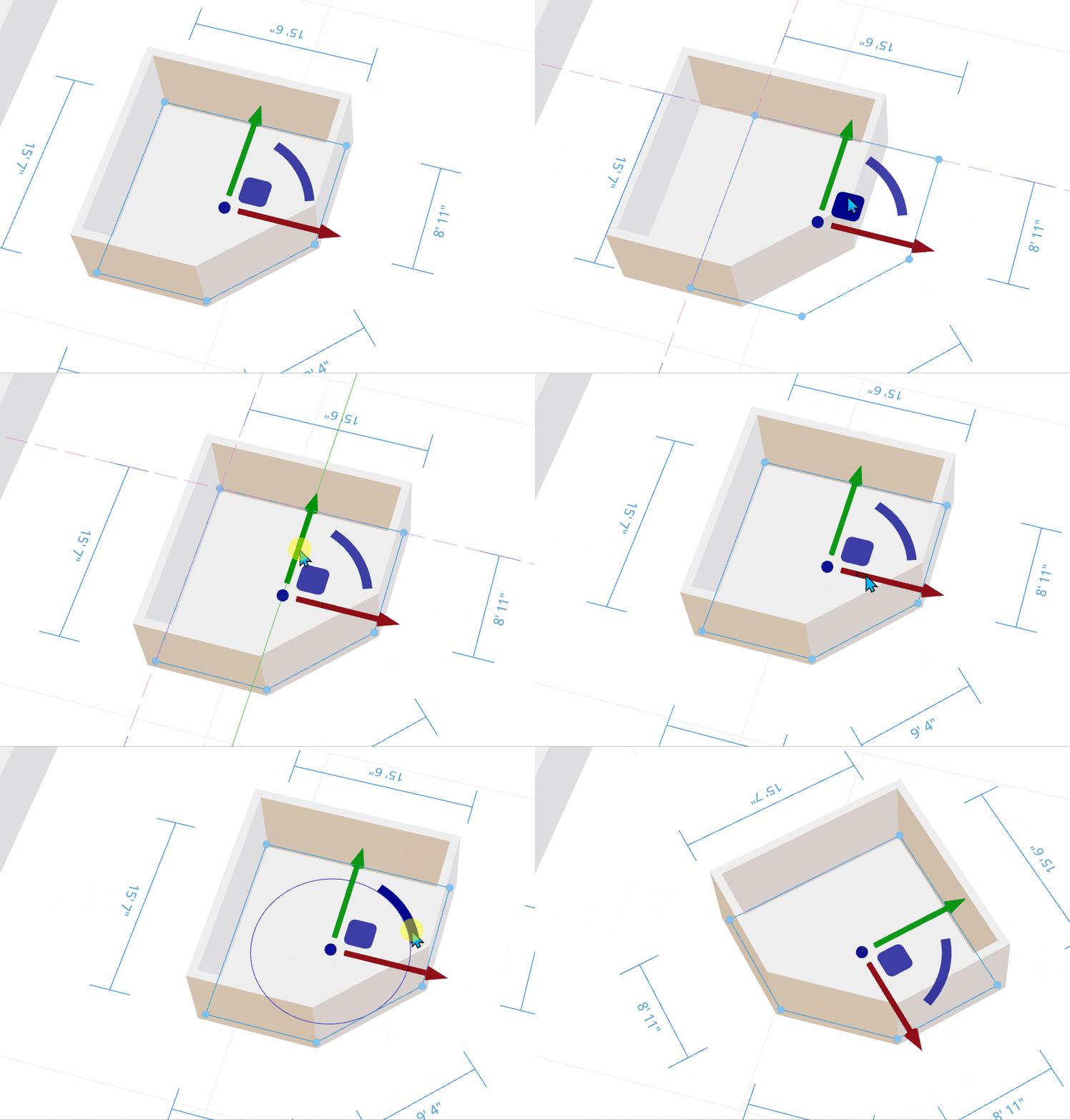
- Square Handle (blue square) — Move freely across the floor surface
- Arrow Handles (blue X/Y arrows) — Move along a single axis
- Center Dot — Free move and automatically re-parent if moved into another room
- Curved Rotation Arc — Rotate the room around the Z-axis
Tip: Select, move, and copy multiple items
- Hold Ctrl and click objects or rooms to select multiple items, then move or delete them together.
- Hold Ctrl while dragging objects or rooms to create copies.
- Use Ctrl+C to copy selected objects or rooms and Ctrl+V to paste them.
Resizing Rooms
Rooms can be resized using their handles:
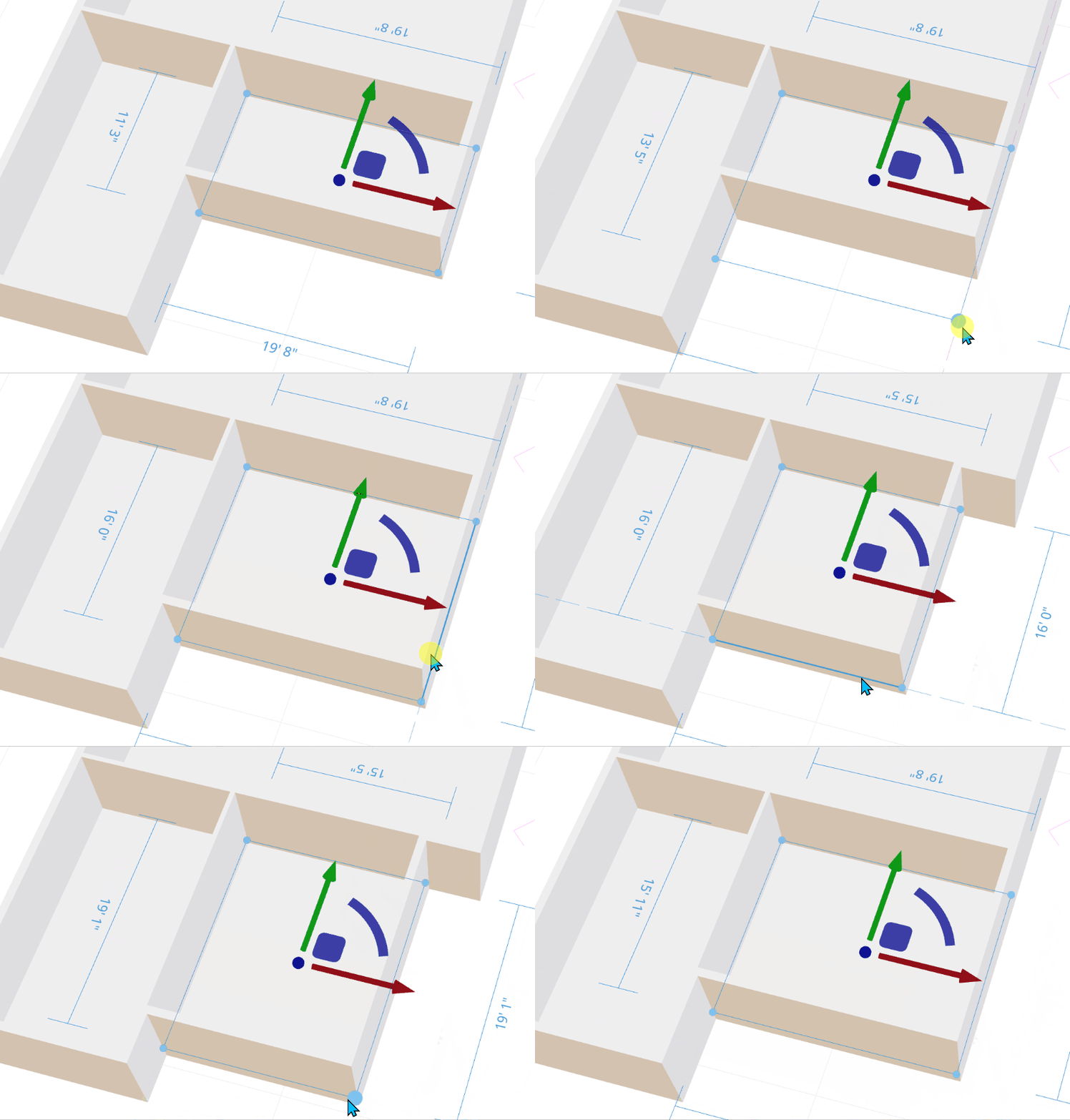
- Edge handles (long blue lines) — Stretch or shrink one side
- Corner handles (circle handles) — Resize two adjacent sides simultaneously
Note
HoldShiftto resize rooms freely without auto-attach.
Auto-Attach & Combined Walls
-
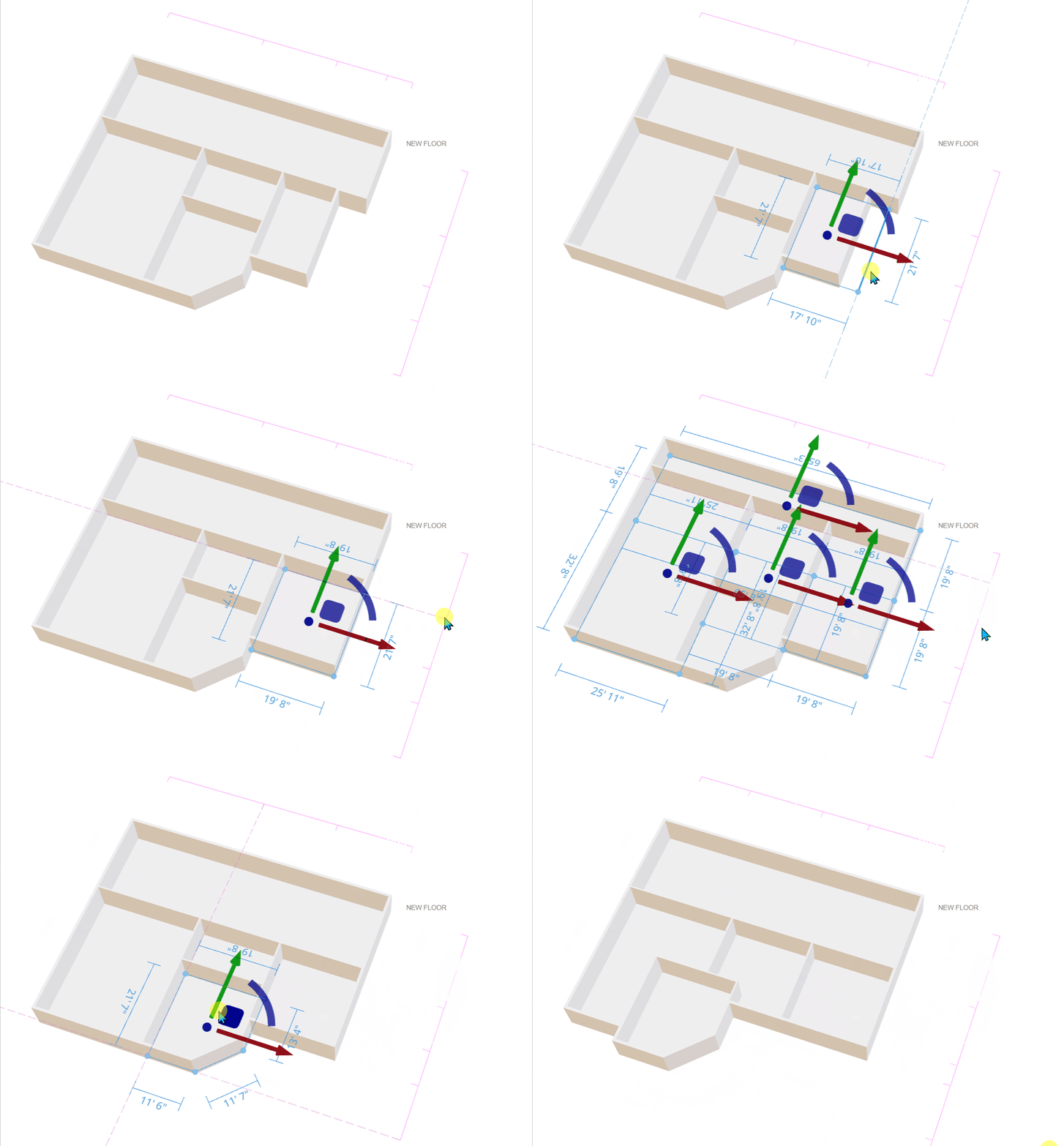
Auto-Attach — When two rooms are moved close together, their walls automatically snap and attach to create aligned shared boundaries. Hold
Shiftto resize rooms freely without auto-attach. -
Adjusting Combined Walls — When multiple rooms share a wall, a pink alignment bar appears.
Drag either end of this bar to adjust the shared wall and resize all connected rooms together.
Editing Room Properties
With a room selected, use the Property Panel to:
- Change the room name
- Adjust room height
- View or edit wall openings
- Manage relationships with other rooms
With a Floor selected, you can also set its floor material in the Property Panel.
Adding or Cutting Parts of a Room
Use Modify shape to extend a room or cut away part of its outline. This lets you create custom shapes, such as an L-shaped room or a recessed corner.
- Select the room in Edit Building mode.
- In the right-side Properties panel, click the shape-editing button. Its tooltip reads “Modify shape - Hold Shift to draw at any angle”.
- Click an existing edge or corner of the room to start.
- Click to add points along the new outline:
- Draw outside the existing outline to extend the room.
- Draw inside the existing outline to cut away part of it.
- Review the preview, then click a different point on the existing room boundary to finish and apply the change.
| Control | Action |
|---|---|
| Click | Place the next point. |
| Hold Shift | Draw at any angle instead of using angle snapping. |
| Backspace | Remove the last point while drawing. |
| Esc | Cancel the unfinished modification. |
The path must start and end at different points on the existing room boundary. The resulting room outline cannot cross itself.
This tool changes an existing room’s outline. Draw connected straight segments to create your custom shape.
Removing Wall Openings
Because openings are empty space and cannot be clicked directly:
- Select a room that contains the opening
- Open the Property Panel
- Under Openings, find the entry for that opening
- Click Delete
This removes the door/window opening from that wall.
Summary
Creating and shaping rooms involves:
- Extending or cutting room outlines with Modify shape
- Dragging room shapes into the workspace
- Moving, rotating, and resizing them with the Position Helper
- Snapping walls automatically, hold
Shiftto disable auto-attach. - Adjusting combined walls
- Managing properties in the Property Panel
This forms the foundation of your home layout before you begin placing objects and sensors.