Install Zircon HA Proxy
Zircon3D communicates with Home Assistant through a lightweight add-on called Zircon HA Proxy.
You can install it either:
- through the Home Assistant App Store (called Add-on Store in older versions), or
- by running the Docker image manually.
This page covers both options.
Install as a Home Assistant Add-on
1. Add the Zircon3D Add-on Repository
Open the Home Assistant App Store, click the ⋮ menu → Repositories, and add a new repository with the following URL:
https://github.com/lichr/zircon-ha-repositoryAfter adding the repository, the Zircon3D HA Proxy add-on will appear in the store.
2. Install the Add-on
- Click Zircon3D HA Proxy
- Click Install
- When installation finishes, click Start
- Open its UI via Open Web UI
3. Configure Add-on Options
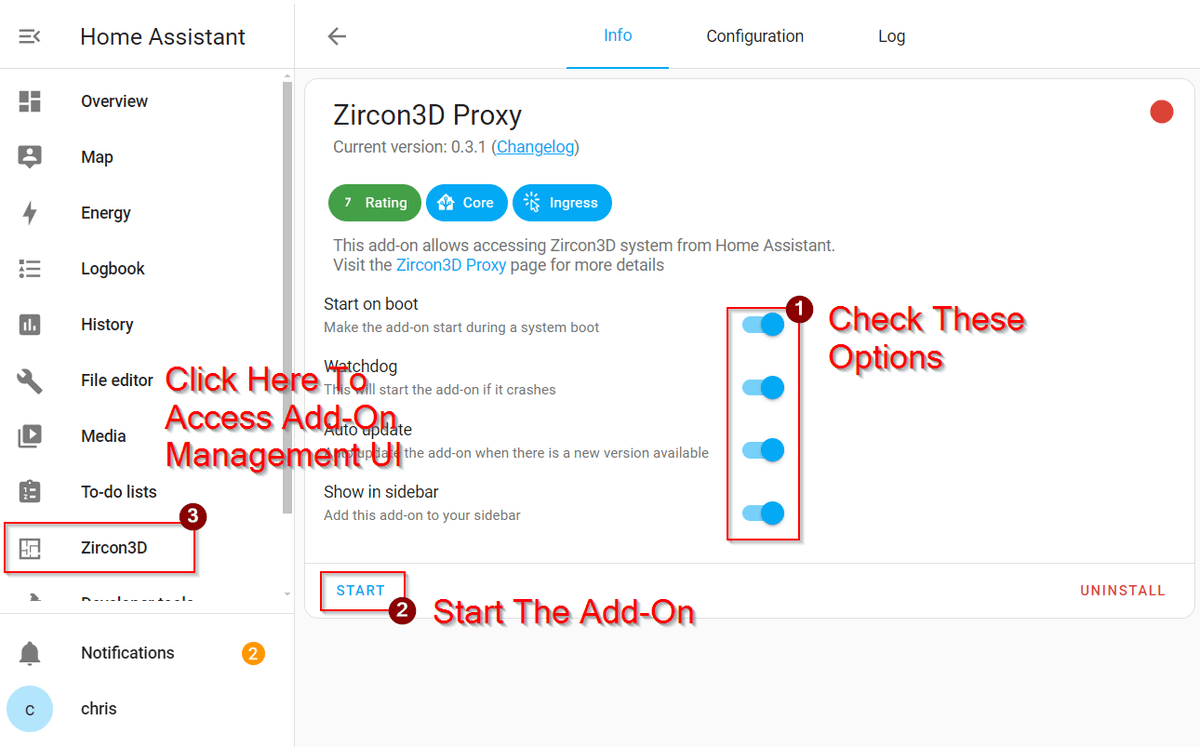
We recommend enabling:
- Start on boot
- Watchdog
- Auto update
- Show in sidebar
→ This adds a convenient Zircon3D icon to your Home Assistant sidebar.
Then click Start to launch the service.
Optional: Direct Port Access
The add-on supports both:
- HA Ingress (default, inside HA UI)
- Direct HTTP access
Direct access runs on port 11200: http://homeassistant.local:11200 You can use this for dashboards, or troubleshooting.
Install Using Docker (Advanced)
You can also run zircon-ha-proxy manually as a Docker container.
Prerequisites
- A running Home Assistant instance
- A Home Assistant Long-Lived Access Token
→ See: https://developers.home-assistant.io/docs/auth_api/#long-lived-access-token
Docker Compose Example
services:
  zircon-proxy:
    container_name: zircon-proxy
    image: lichr/zircon3d-ha-proxy-amd64:local
    environment:
      - ZIRCON_PROXY_MODE=service # important !
      - ZIRCON_PROXY_PORT=11200 # optional, default is 11200
      - ZIRCON_PROXY_LOG_LEVEL=info # optional, default is info
      - HA_API_URL=http://homeassistant:8123/api # change this if you run HA in same docker-compose file
      - HA_WS_URL=http://homeassistant:8123/api/websocket # see above
      - HA_ACCESS_TOKEN=YOUR_HA_ACCESS_TOKEN # long lived access token
    volumes:
      - YOUR_DATA_DIR:/data
    ports:
      - 11200:11200
If you run zircon-ha-proxy and Home Assistant in the same Docker Compose setup, replace http://homeassistant:8123 with the actual service name of your Home Assistant container in both HA_API_URL and HA_WS_URL.
Visit Proxy UI
Once zircon-ha-proxy is running, open: http://localhost:11200 or from another device on your network: http://YOUR-HOST-IP:11200