Mounting Furniture and Objects
Objects include furniture, appliances, lights, sensors, doors, windows, stairs, and any items you want to visualize or attach data to. This section explains how to place, position, rotate, and edit objects in your home plan.
Add Objects
Use the Models panel to choose objects for your floorplan. See Models for browsing the library, importing custom .glb models, configuring a Cube, and creating a PV Array.
- Switch to Objects Mode using the Editor Bar or click Objects in the left sidebar.
- Click Objects in the left sidebar to open the Models panel.
- Drag and drop an object from the library onto a Floor or Room in the 3D workspace.
Notes:
- Doors and windows must be dropped onto walls, not floors.
- While in Objects Mode, the building structure becomes read-only.
Select Object
To select an object:
- Ensure you are in Objects Mode
- Click the object in the 3D Workspace
The Object Position Helper will appear around the selected object.
Move Objects
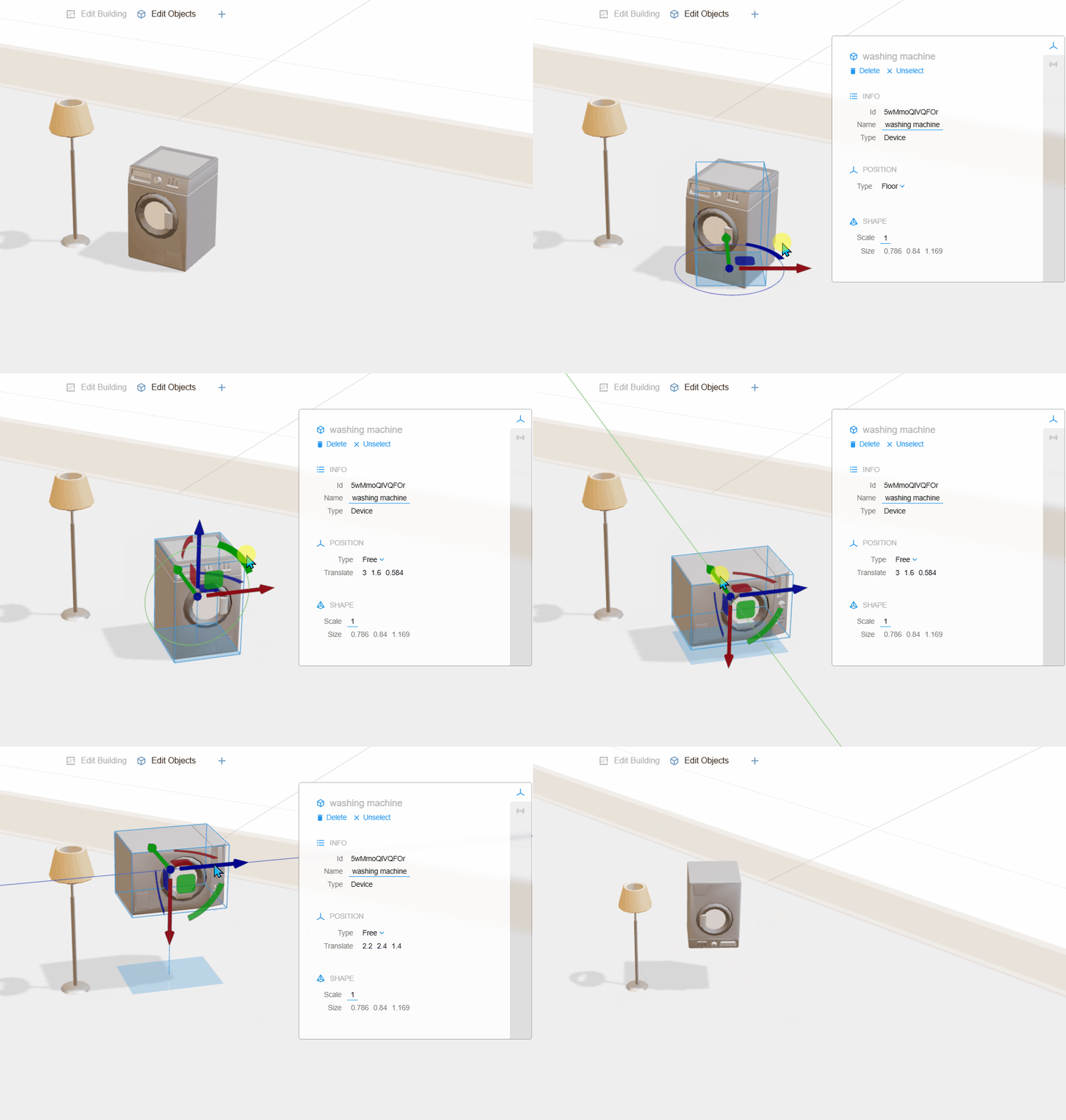
All objects in Zircon3D use a Position Helper that appears when the object is selected.
This helper provides the main tools for moving and rotating objects in the 3D scene:
- Square Handle — Move the object along a surface plane
- Arrow Handles — Move the object along X, Y, or (if allowed) Z axis
- Curved Rotation Arcs — Rotate the object around X, Y, or Z axes
- Center Dot — Reset all transforms back to default position & rotation
Tip: Select, move, and copy multiple items
- Hold Ctrl and click objects or rooms to select multiple items, then move or delete them together.
- Hold Ctrl while dragging objects or rooms to create copies.
- Use Ctrl+C to copy selected objects or rooms and Ctrl+V to paste them.
Objects behave differently depending on their Position Type. You can change this in the Property Panel → Position Type. Below is a list of all Position Types and how each one functions:
Floor — For objects that sit on the floor (chairs, tables, appliances)
Free — This enables full 3D movement (Ceiling-mount, Floating, wall-mount)
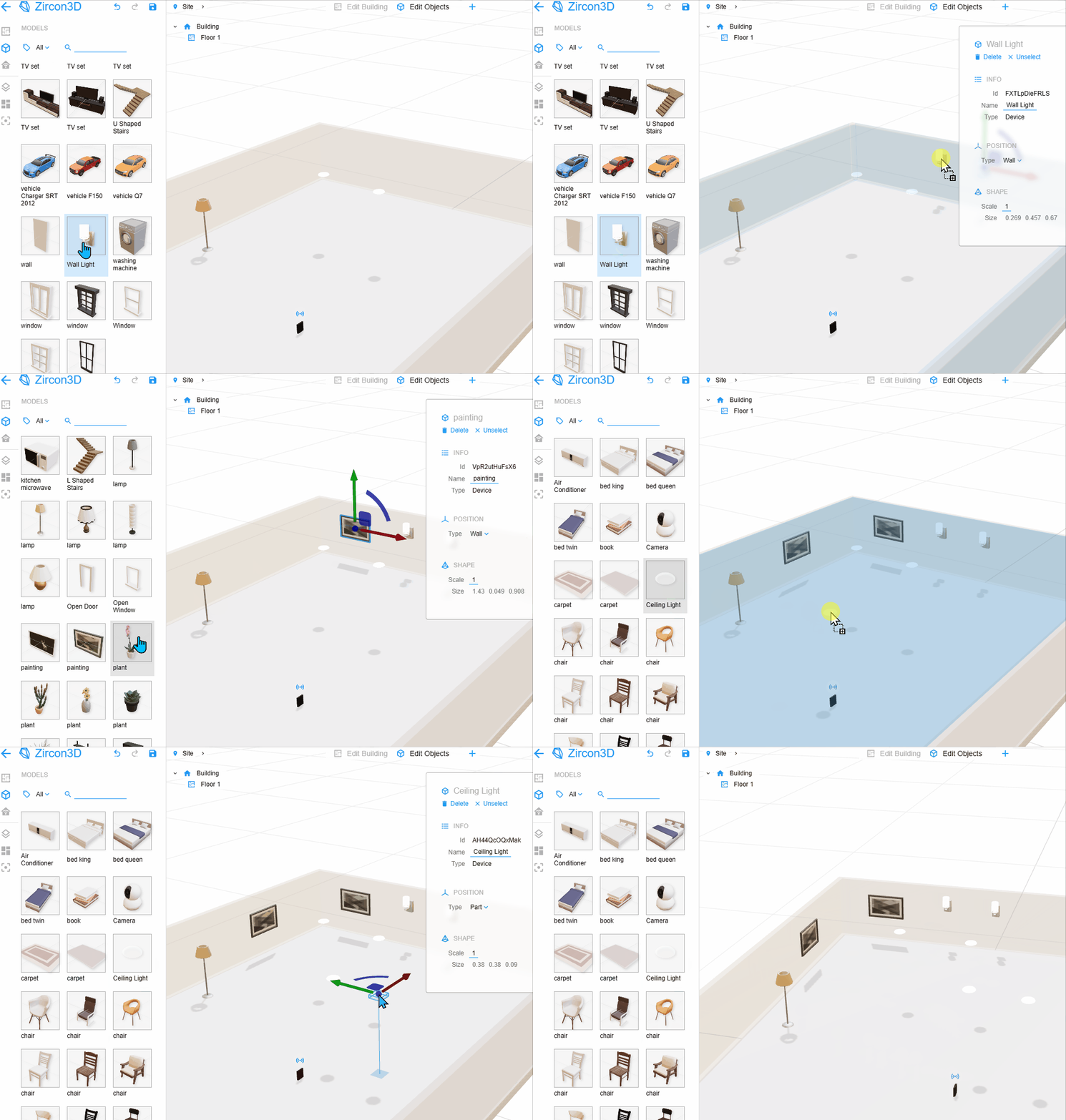
Wall — The model Wall Light and painting will be automatically snap to walls and move along its surface.
Part — The model Ceiling Light will be snap to the ceiling surface and move along it.
Note: The Wall and Part position types cannot be changed by the user. They are assigned by the system.
Scale Objects
To scale an object:
- Select the object
- In the Property Panel, locate Scale
- Hover over the scale number
- Use the middle mouse scroll to increase or decrease size
This allows fast, precise resizing while maintaining proportions.
Edit Object Properties
With an object selected, the Property Panel lets you:
- Change the name
- Adjust elevation (Z height)
- Change Position Type (Floor / Free)
- Review data links if the object is bound to a sensor
- Configure visual appearance depending on object type
These settings help you control both placement and how the object integrates into data visualization.