Mapping Sensors & Home Assistant Data
Zircon3D communicates with third-party systems like Home Assistant to interact with your smart devices.
Sensors are mounted and positioned in the 3D scene the same way as regular objects, and you can link monitored devices directly to objects on your floorplan.
This page explains how to mount sensors, place them in your layout, and connect Home Assistant entities for live data display.
Mounting and Configuring Sensors & Entities
-
Open the Monitored tab in the left sidebar. Use search and filters to find the correct sensor or entity.
You’ll see two sub-lists:
- Devices — Groups Home Assistant entities under their device
- Properties — Lists all HA entities, including standalone template sensors and orphaned sensors
-
Drag the sensor or entity into the workspace, and use the Position Helper to place it correctly.
-
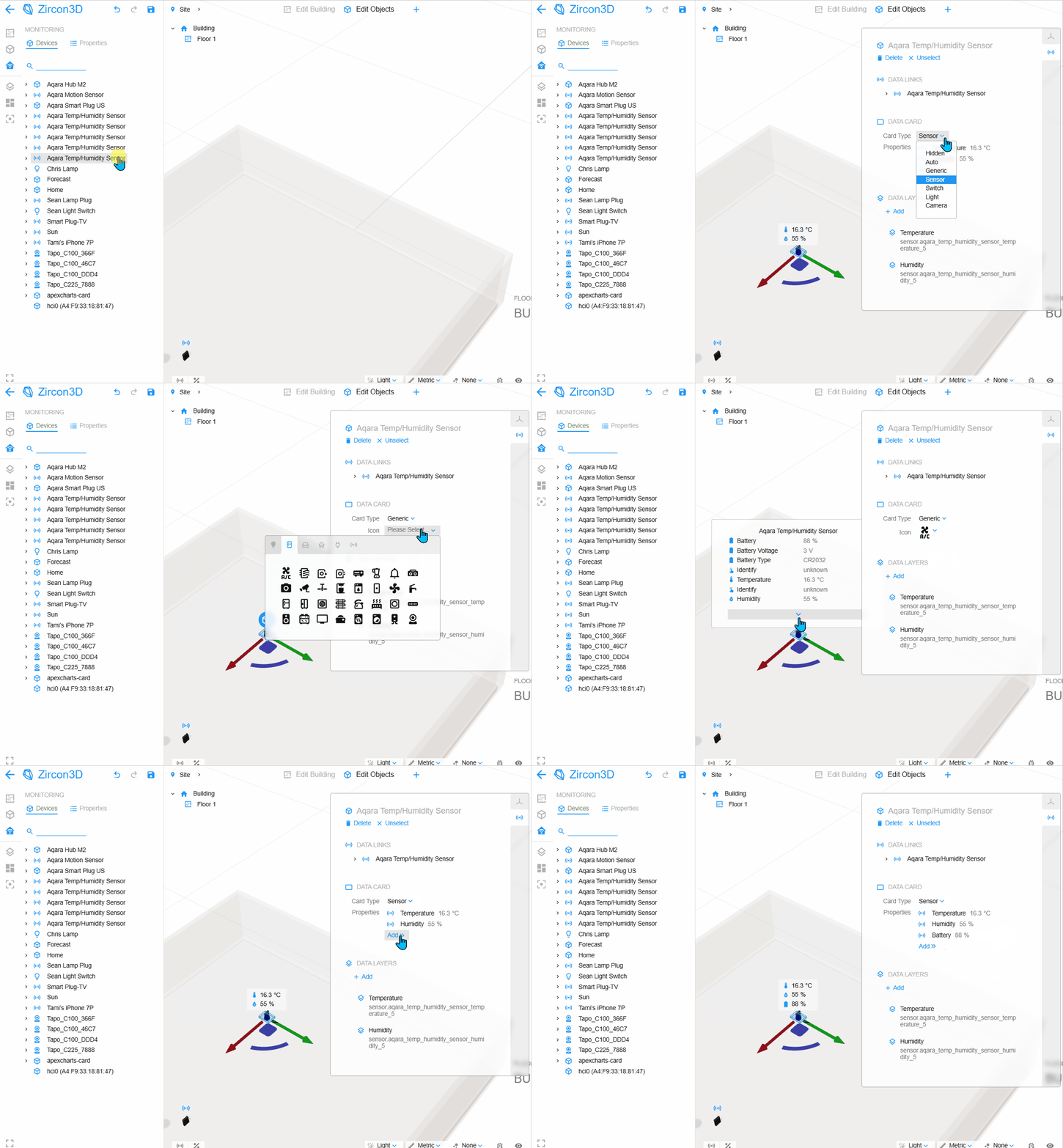
Open the Monitoring Properties panel on the right to configure the selected sensor.
The Monitoring Properties panel includes:
- Data Links — Shows the Home Assistant entity currently linked
- Data Card — Choose how the linked entity appears as a floating card on your 3D floorplan in Viewer Mode. Cards can display sensor readings or provide interactive controls for supported Home Assistant entities.
- Data Layer Mapping (Heatmaps) — Assign specific sensor entities to one or more heatmap layers
Available control cards include:
Card Use Light Control lights, including brightness percentage and color where supported. Switch Turn switches on or off. Cover Control garage doors, windows, shades, blinds, curtains, and other cover entities. Climate Control air conditioners, heat pumps, thermostats, and other climate entities. Lock Control door locks and other lock entities. Fan Control fans and their supported settings. Choose the appropriate card type under Data Card for the linked entity. Available controls depend on the entity’s capabilities and the options supported by the card.
To manage floating-card visibility, see Creating View Profiles.
Mapping Sensors to Furniture Objects
You can map an entire sensor (with all its entities) to a furniture object
OR map a single entity to a specific object.
- Select a furniture object
- Open its right-side Monitoring Properties panel
- Drag a sensor or a single entity into the Data Link area
- The object now displays that sensor’s data
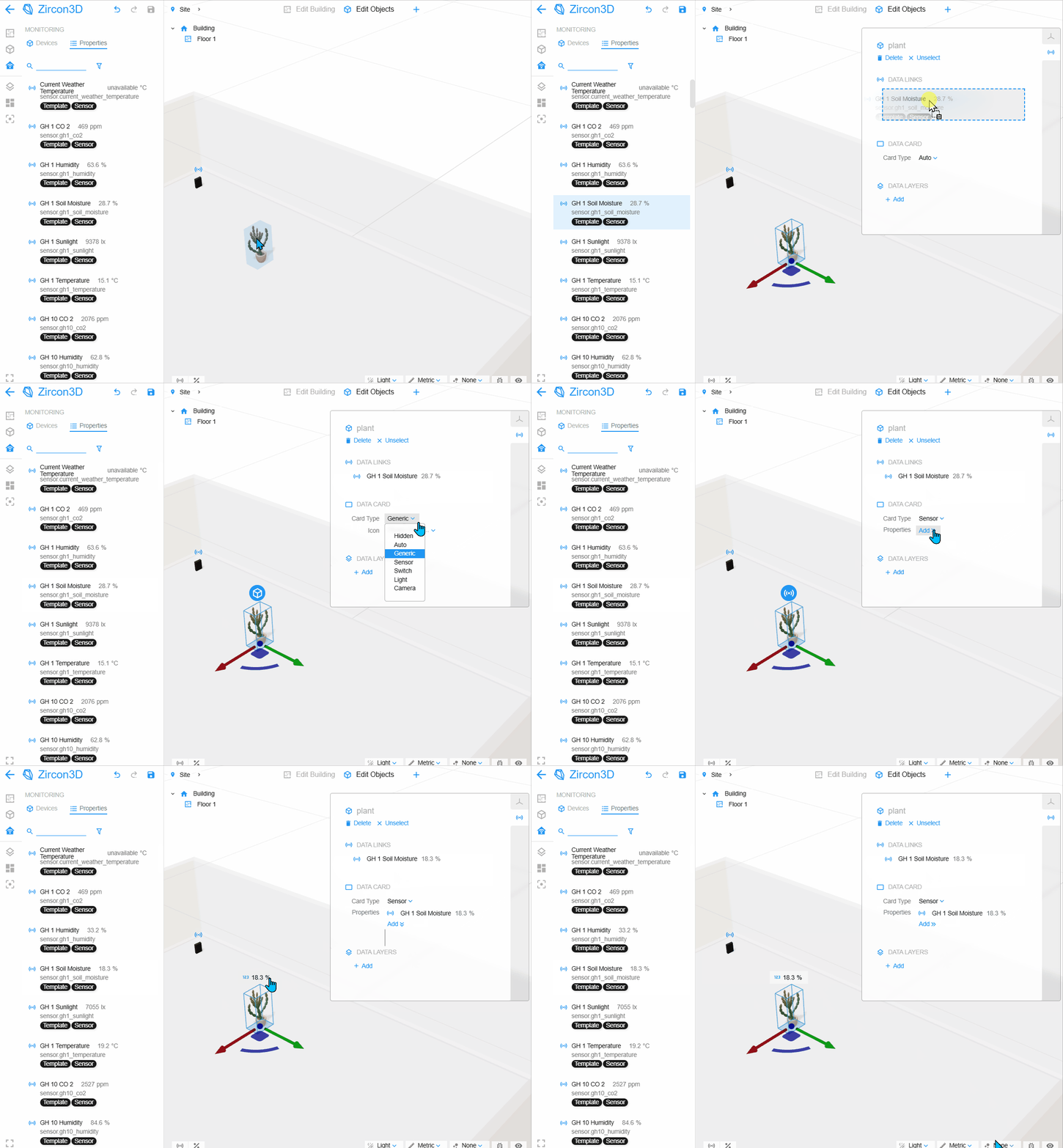
Example: Mapping a soil moisture entity to a plant object in the floorplan.
This completes the workflow for integrating real Home Assistant data into your 3D floorplan.